• EN
  • USD
Currency
USD: $
Change
You are shopping on MaxTech United Kingdom.
This is just for demonstration.
MaxTech

Categories

Menu

© MaxTech Breakdance theme. All right reserved. Powered by wpsix.com

Don't have any account yet? Register

Faster checkout

Save your details, and enjoy a faster checkout every time.

Order tracking

View your current and past orders in one place.
$0.00 0

Cart

Your cart is empty

Looks like your cart is empty. Time to fill it with some of your favorite products!

No products in the cart.

Documentation

How to install Maxtech

Install the Maxtech WooCommerce theme for Breakdance, activate the required plugins, and import the demo so the store matches the live preview.

If you have not yet purchased you can do that on gumroad click here
1. Introduction

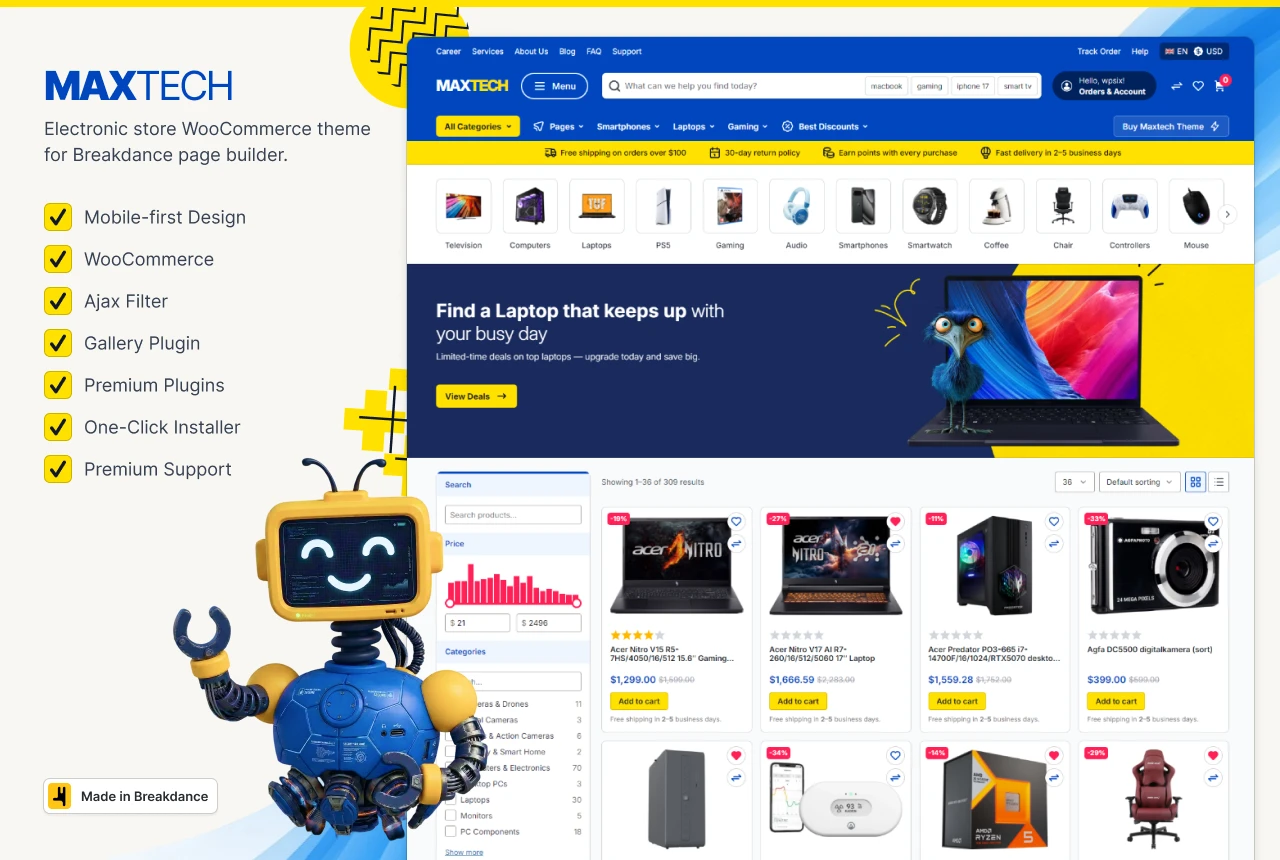
Maxtech is a WooCommerce theme built for Breakdance. It includes store templates, header and footer layouts, and plugins for search, reviews, variation swatches, filters, gallery, wishlist, and compare.

Complete the steps in order. Do not import the demo before the theme and required plugins are active.

2. Requirements

Confirm your site meets these requirements before you import the theme.
Item Minimum
WordPress 7.0 or newer
PHP 8.0 or newer
WooCommerce Installed and active
Breakdance Builder Installed, licensed, and active

3. Install Maxtech plugin

The Maxtech plugin is the only plugin you install by hand, which then installs every other required plugin for you.
  1. Upload the plugin

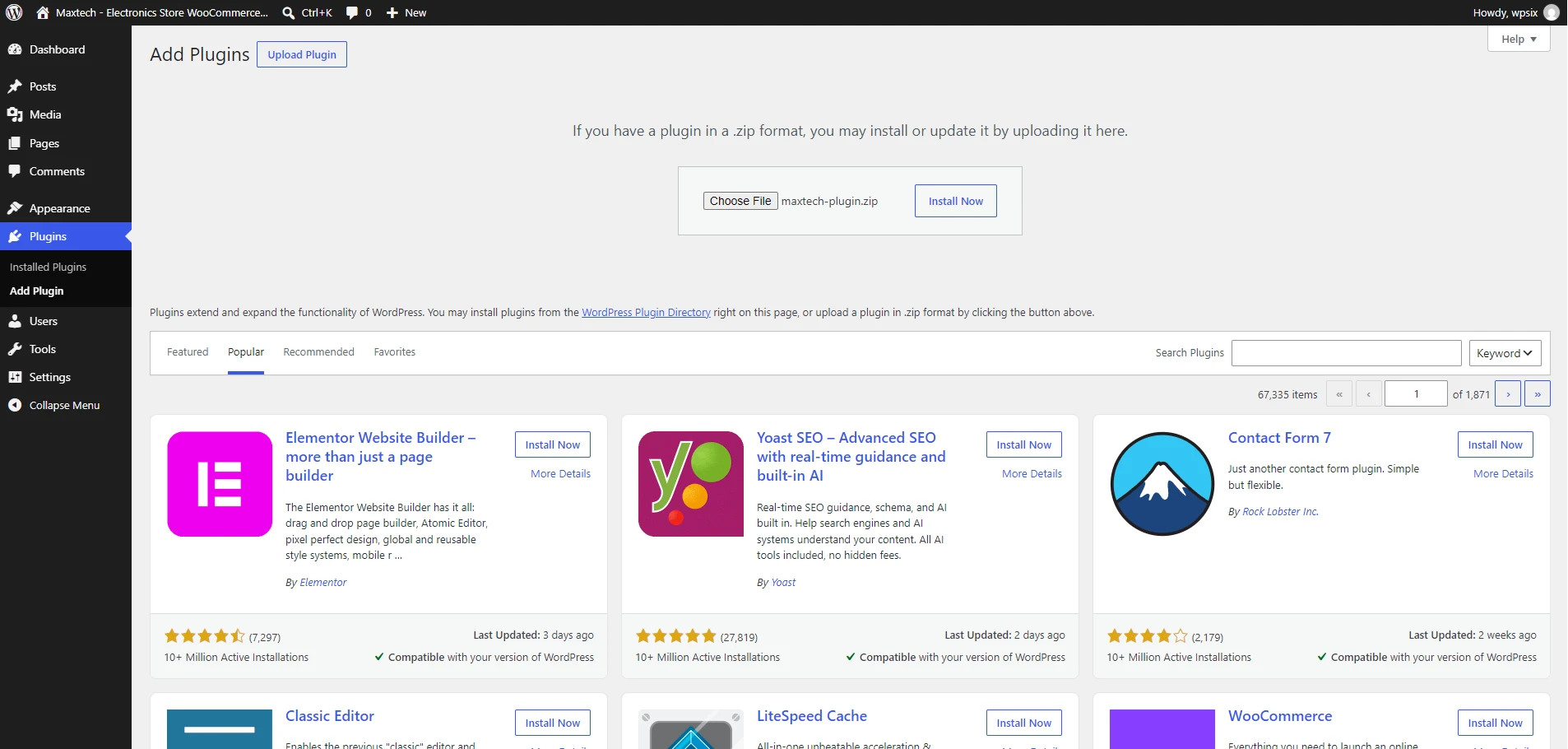
    Go to Plugins > Add New > Upload Plugin, choose maxtech-plugin.zip, and click Install Now.

  2. Activate the plugin

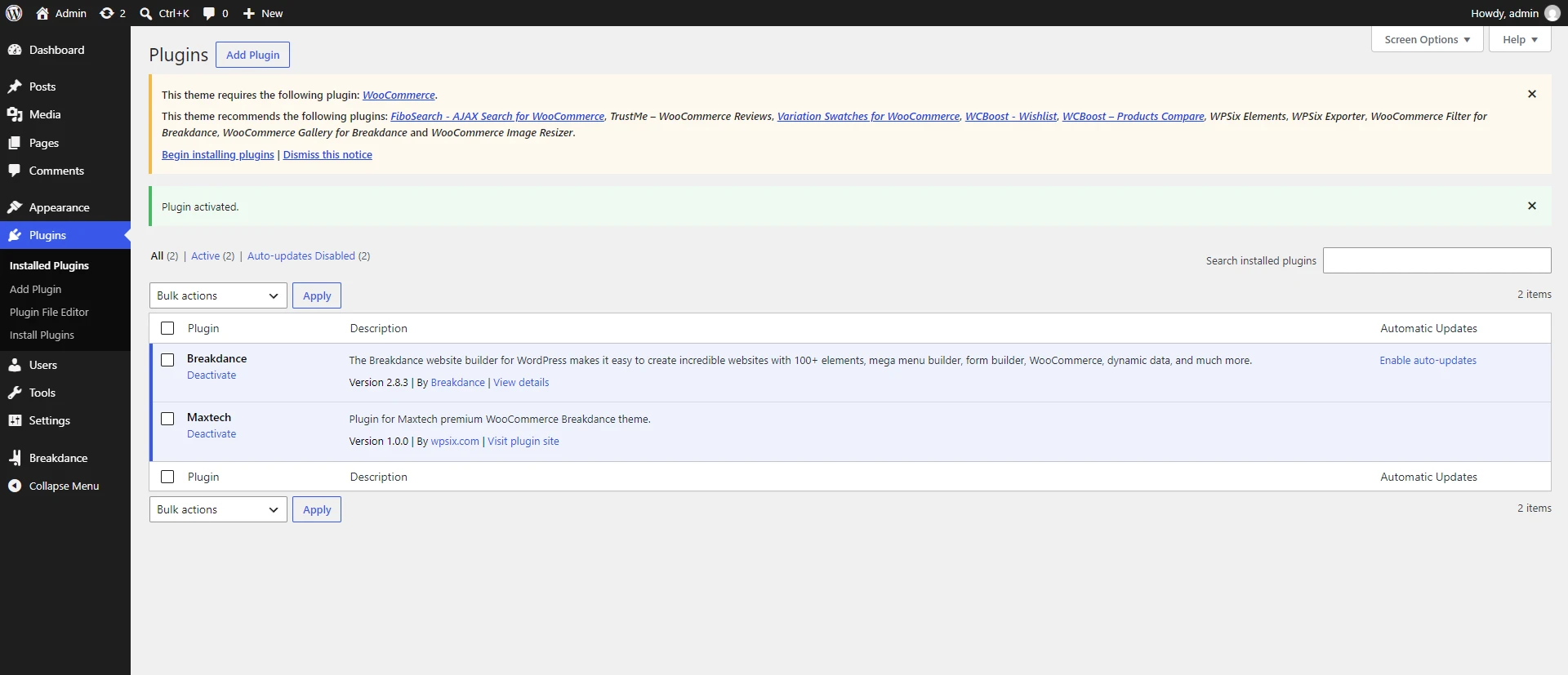
    Click Activate Plugin. Plugin shows a notice listing the plugins the theme still needs.
4. Install required plugins

The Maxtech plugin registers the remaining plugins, so you do not upload zip files one by one. Install and activate the full set from a single screen.
  1. Open the installer

    Click Begin installing plugins on the dashboard notice, or go to Appearance > Install Plugins.

  2. Install all plugins

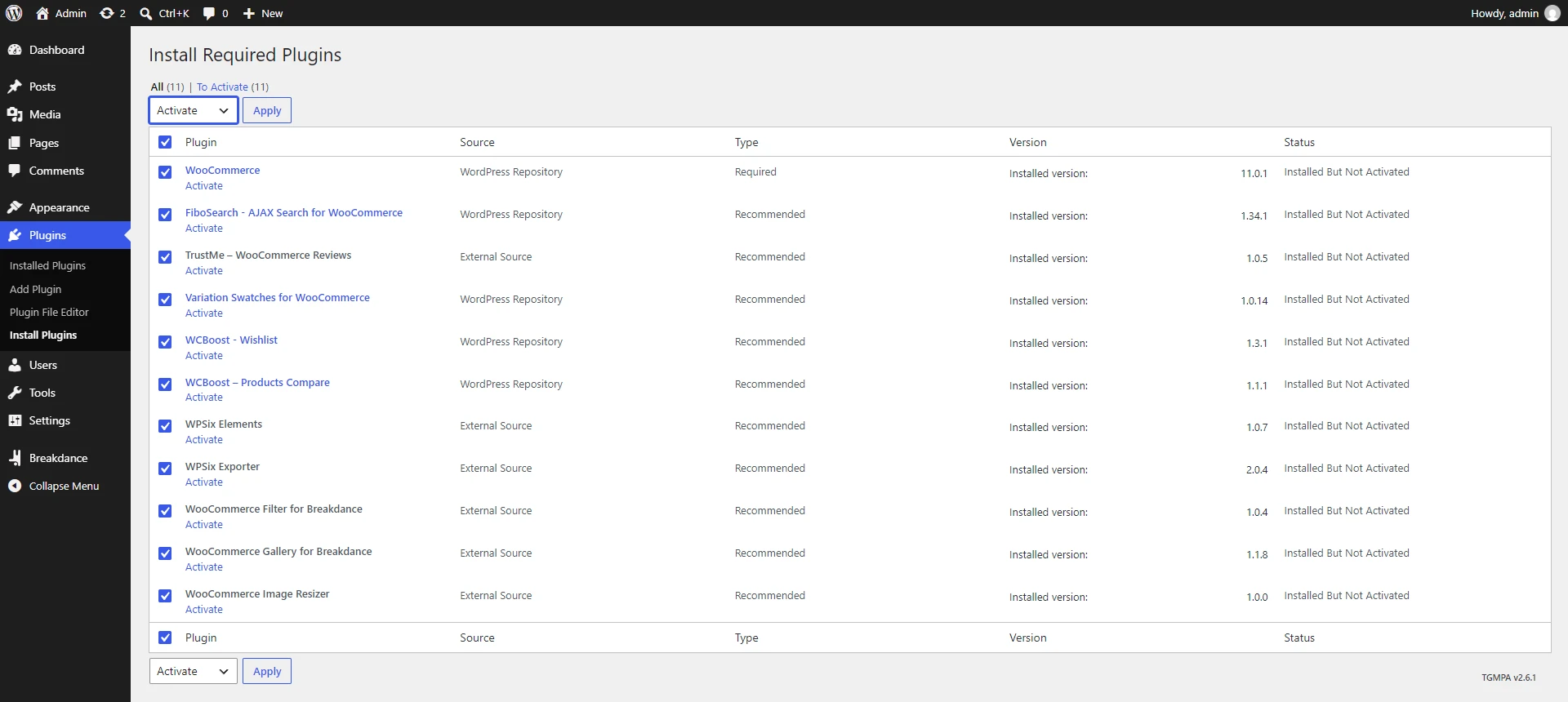
    Tick the checkbox in the table header to select every plugin. Open Bulk Actions, choose Install, then click Apply. Wait until TGM finishes installing the whole list.

  3. Activate all plugins

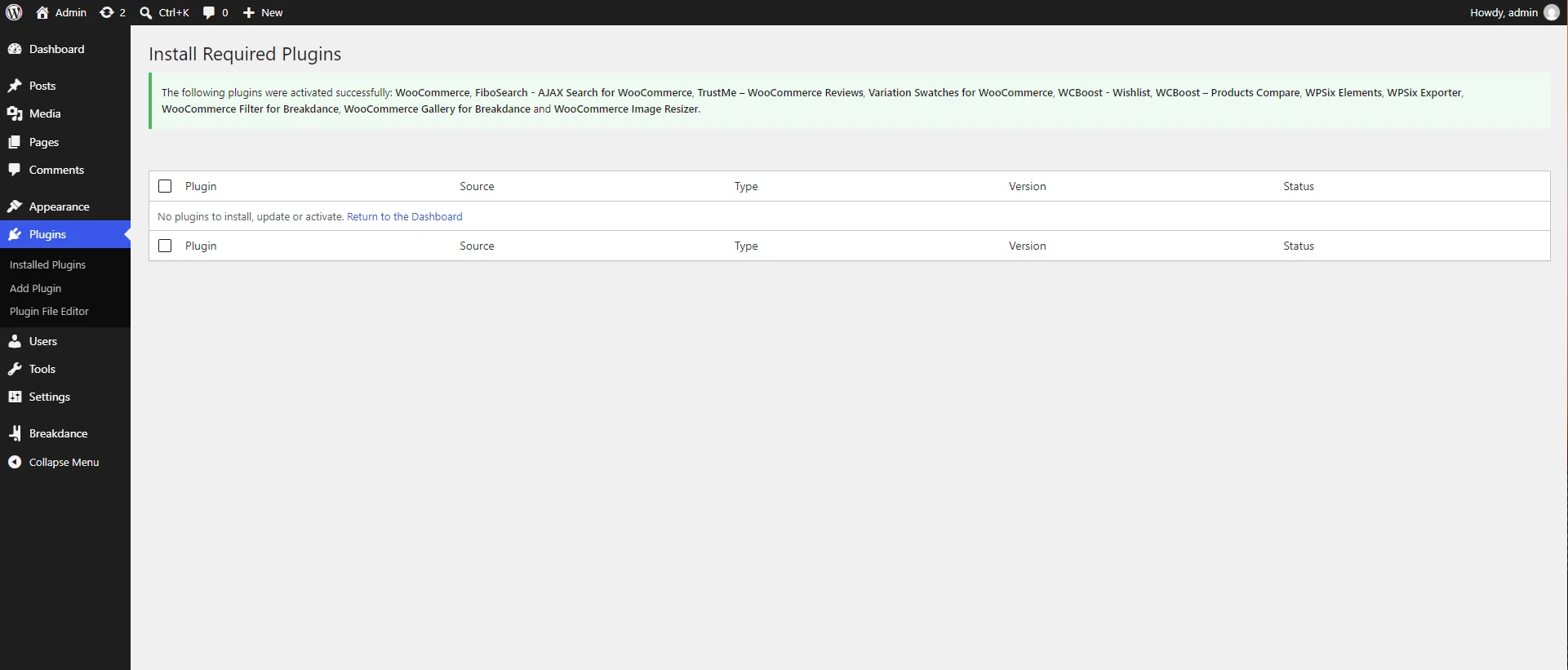
    Return to Appearance > Install Plugins, select all plugins again, choose Activate from Bulk Actions, and click Apply. The notice disappears when every required plugin is active.
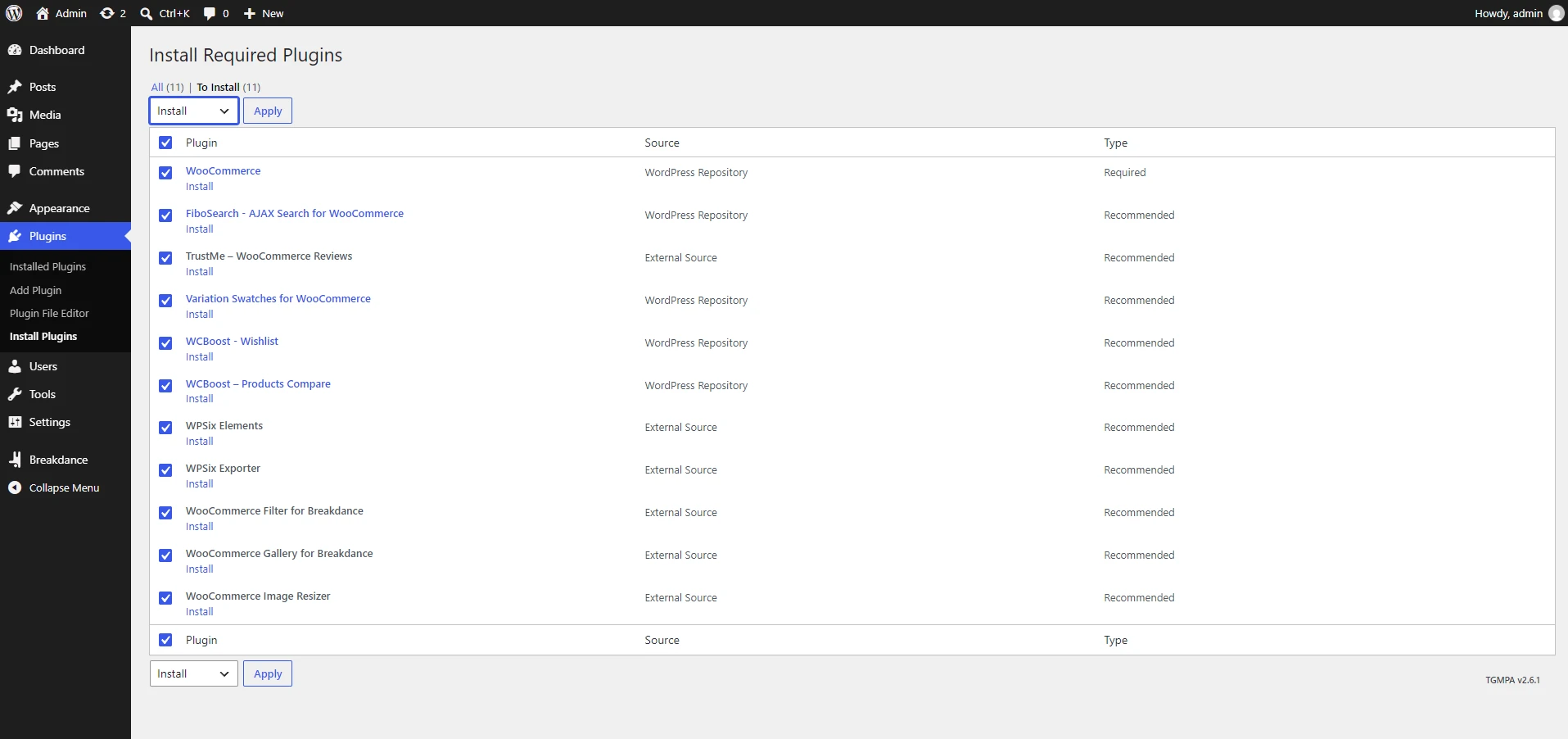
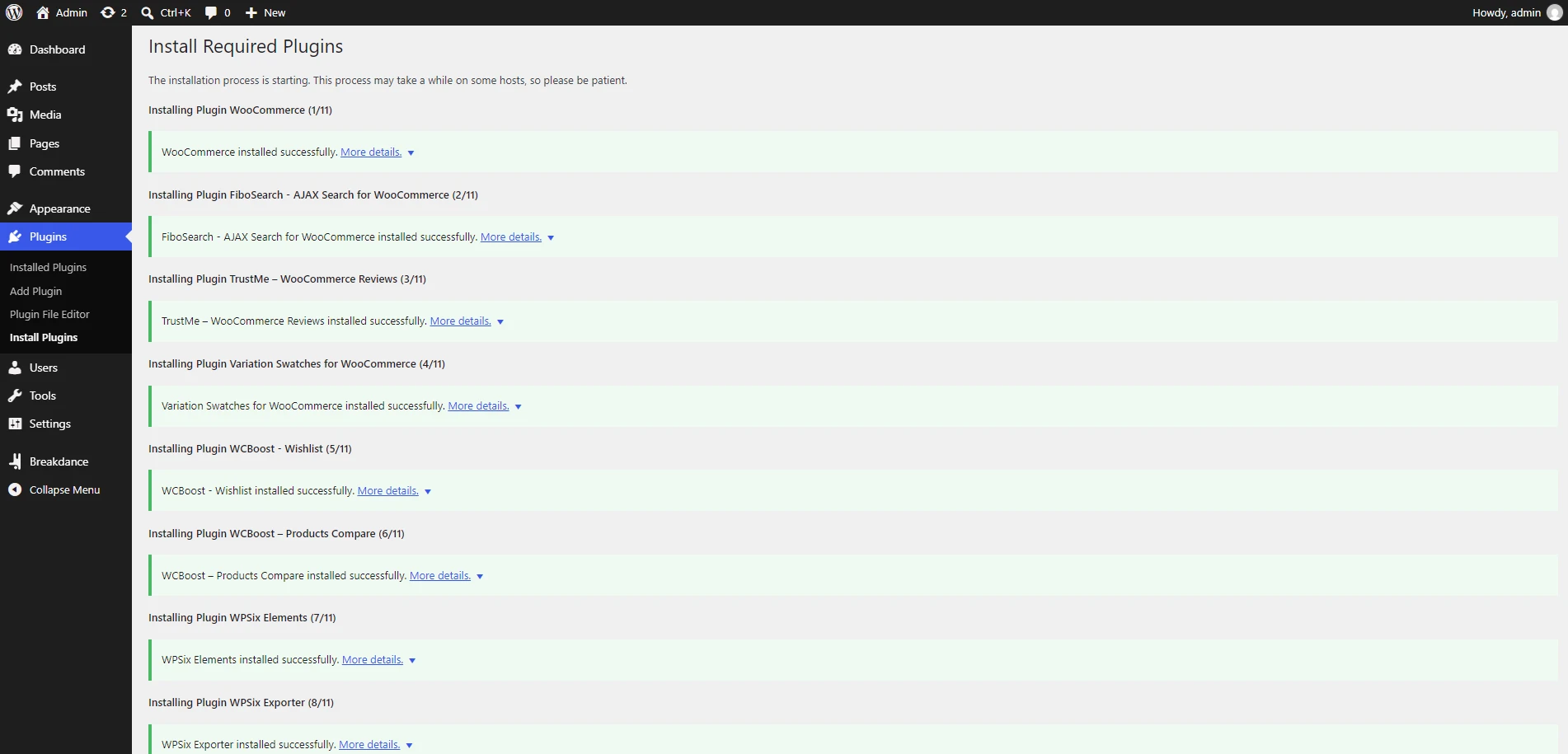
Plugin How it is installed
Maxtech Manually
FiboSearch - AJAX Search for WooCommerce Auto
TrustMe - WooCommerce Reviews Auto
Variation Swatches for WooCommerce Auto
WCBoost - Products Compare Auto
WCBoost - Wishlist Auto
WooCommerce Filter for Breakdance Auto
WooCommerce Gallery for Breakdance Auto
WPSix Elements Auto
WPSix Exporter Auto
The Notice only appears while the Maxtech plugin is active, so activate it first. If you dismissed the notice, open Appearance > Install Plugins and finish install plus activate there. WooCommerce and Breakdance are not installed by TGM, and any license keys should be added before you import the demo.

5. Import design

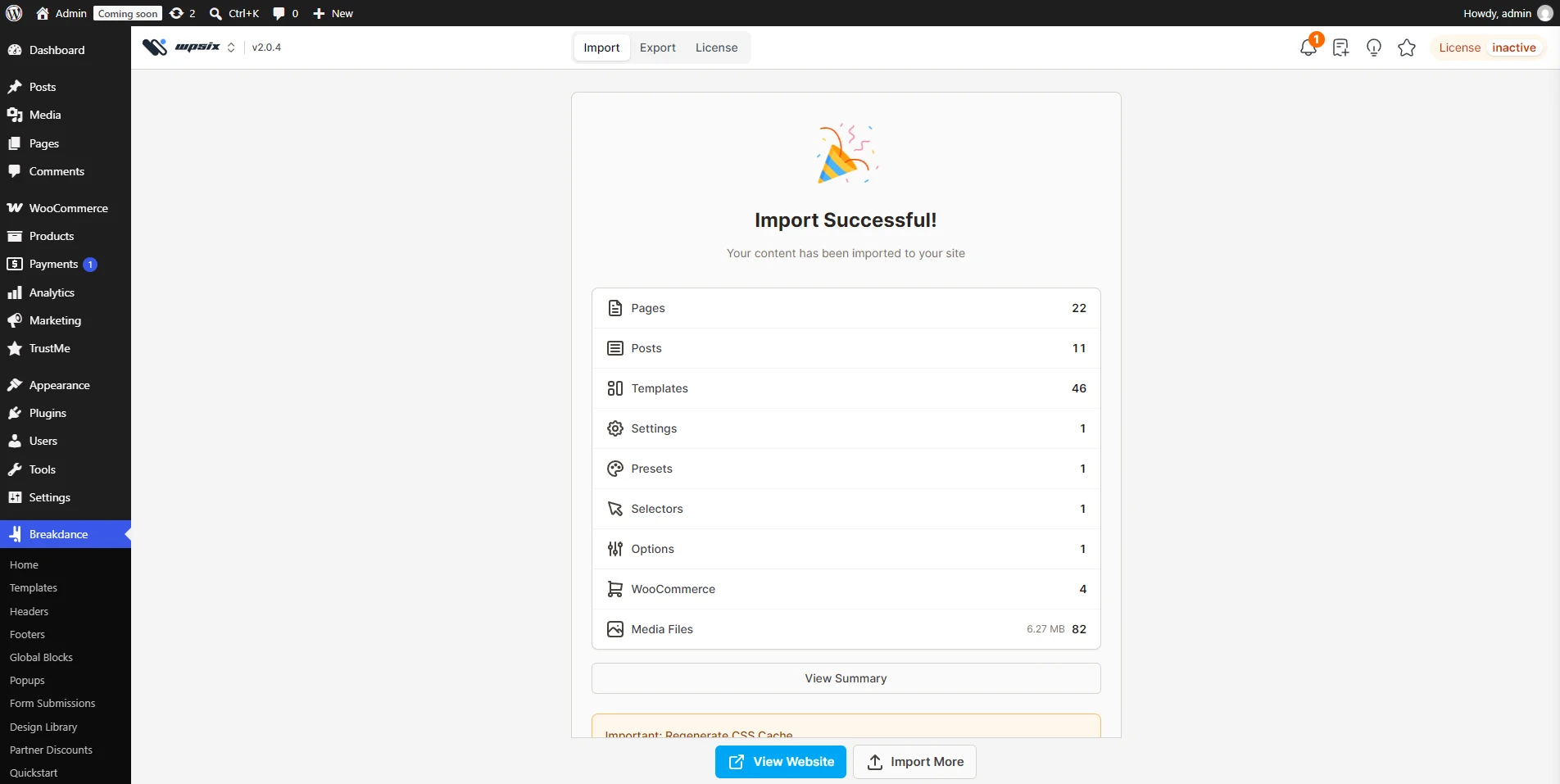
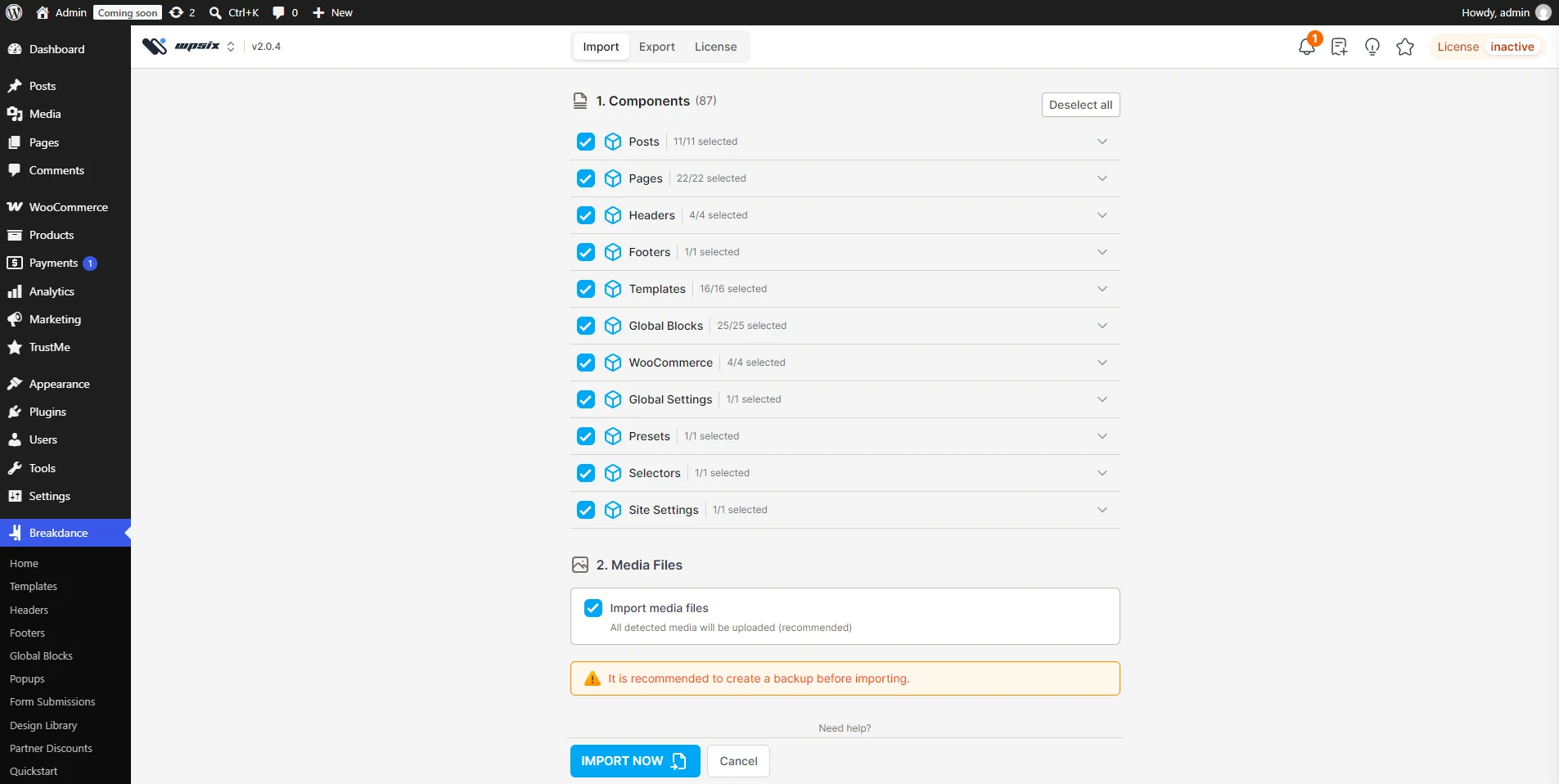
Import the Maxtech design with the WPSix Exporter plugin. This brings in media files and pages from install.zip.
  1. Open WPSix Exporter

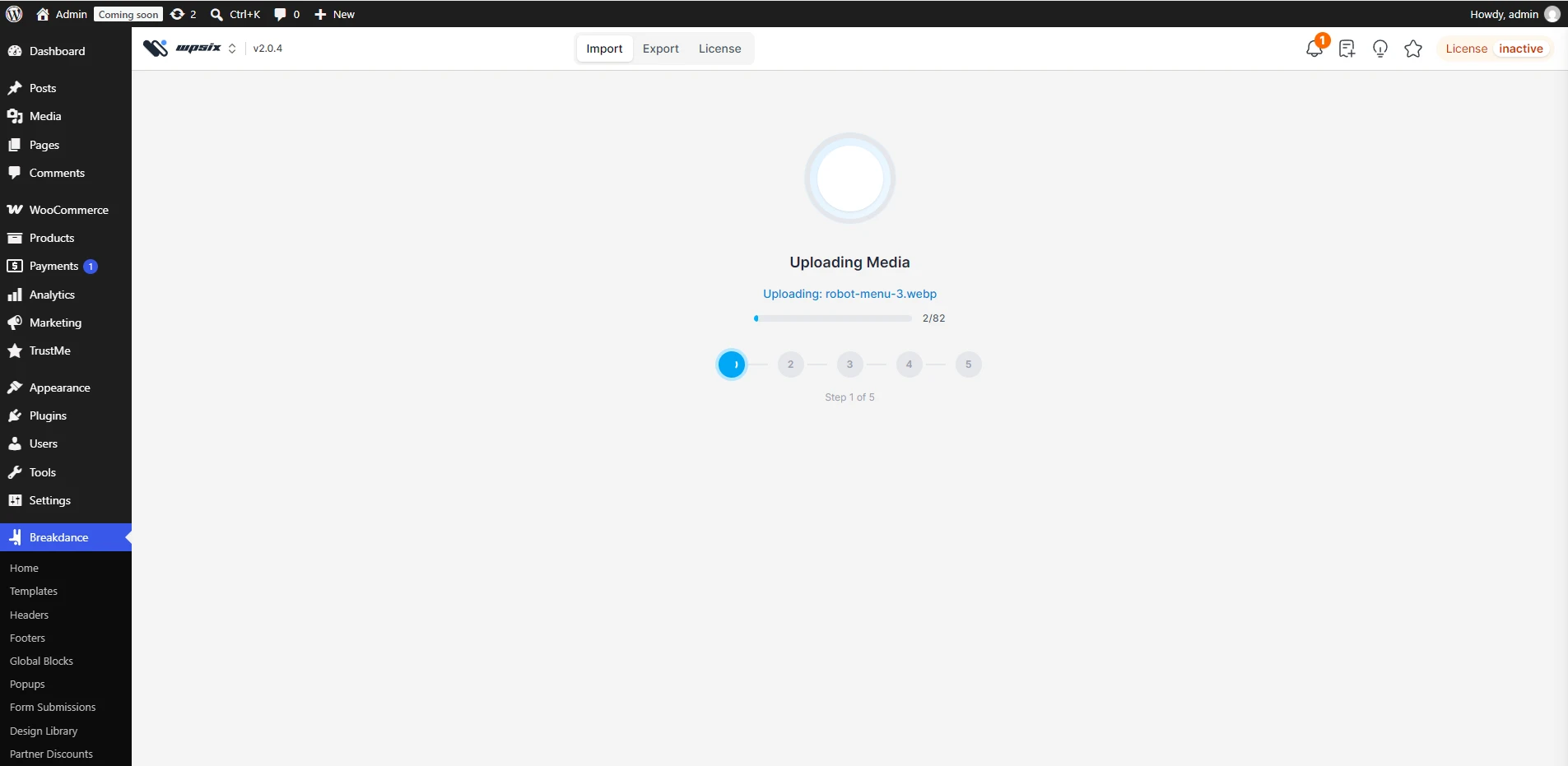
    Open WPSix > Exporter, load install.zip, and start importing media files and pages.

  2. Wait for the import to finish

    Do not close the tab. When the importer reports success, continue to the CSS cache step below.

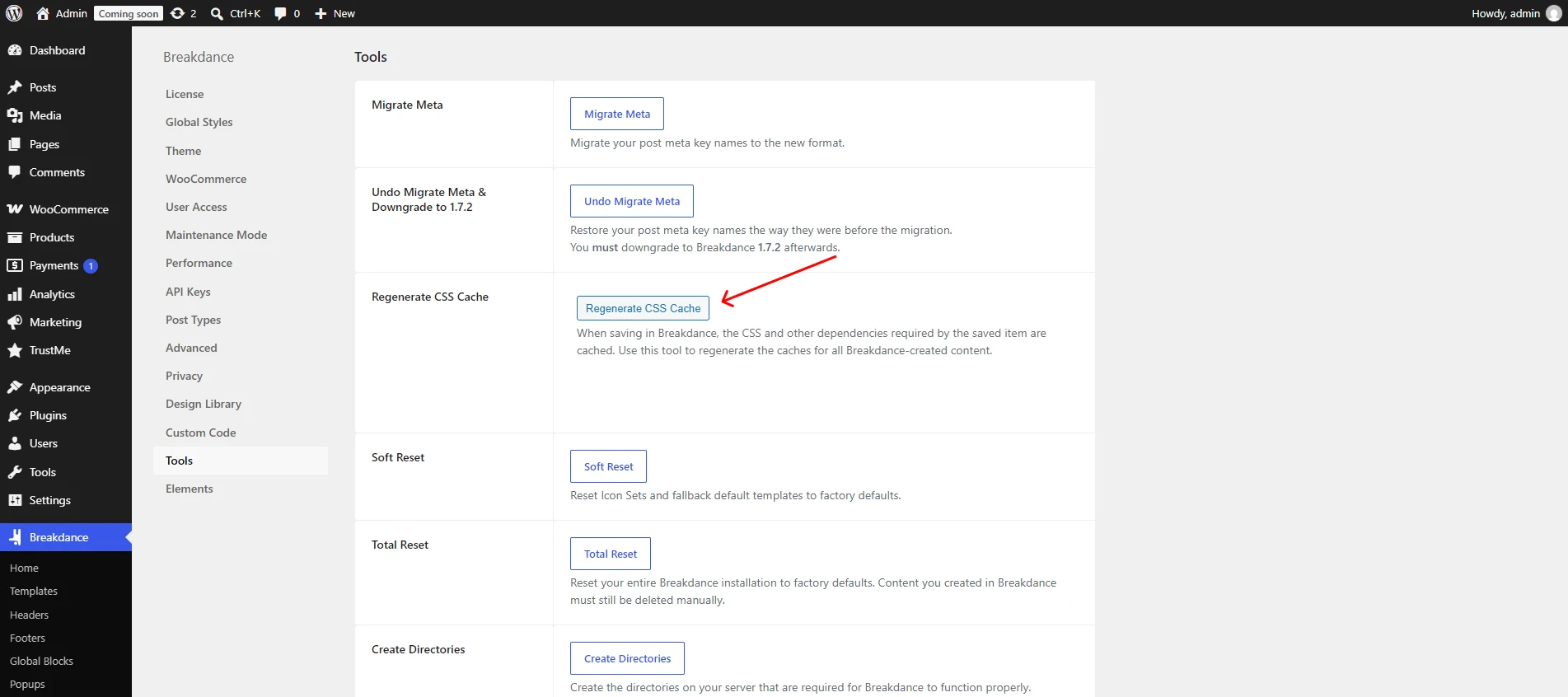
  3. Regenerate CSS cache

    Go to Breakdance > Tools and regenerate the CSS cache so the imported layouts render with the correct styles.
6. Import products

This step is optional. Use it only if you want a sample catalog to preview Maxtech. Skip it if you will add your own products.
  1. Open the product importer

    Go to WooCommerce > Products > Import.

  2. Upload the sample file

    Choose sample-products.csv from the Maxtech package and click Continue.

  3. Run the import

    Keep the column mapping as it is, then click Run the importer. When it finishes, open the shop and a few products to confirm they appear.


Do not import sample products on a live store that already has a catalog. Design import adds pages and media, not the sample catalog, so use this step only if you want sample products.

7. Finish

Clear any cache plugin, then check the homepage, a product with variations, search, wishlist, compare, and checkout. If a layout looks unstyled, re-save permalinks and confirm every required plugin is still active.
© MaxTech: Trusted Source for Electronics and Tech Gear. Created by wpsix.com