If you have not yet purchased you can do that on gumroad click here

| Item | Minimum |
|---|---|
| WordPress | 7.0 or newer |
| PHP | 8.0 or newer |
| WooCommerce | Installed and active |
| Breakdance Builder | Installed, licensed, and active |
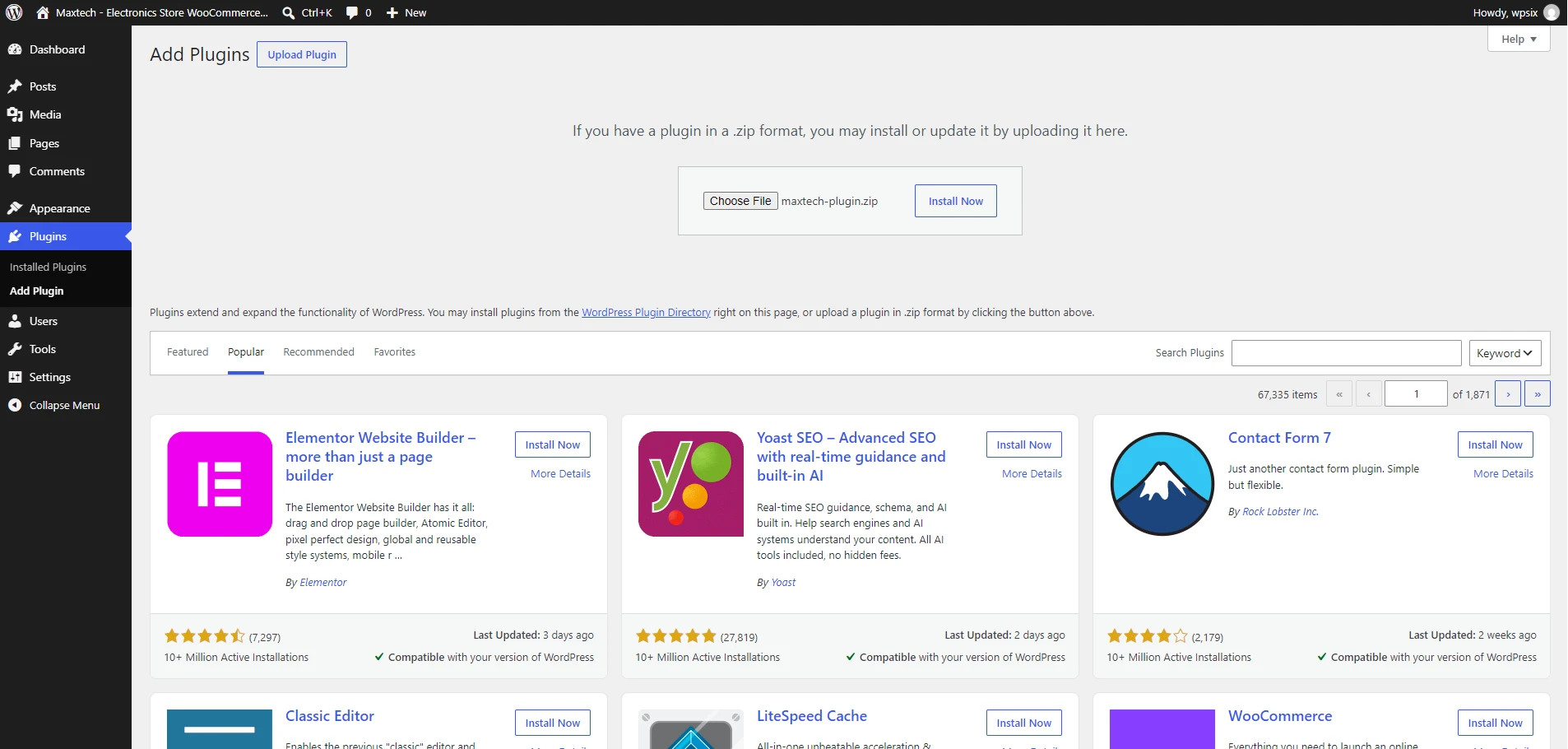
Go to Plugins > Add New > Upload Plugin, choose maxtech-plugin.zip, and click Install Now.
Click Activate Plugin. Plugin shows a notice listing the plugins the theme still needs.
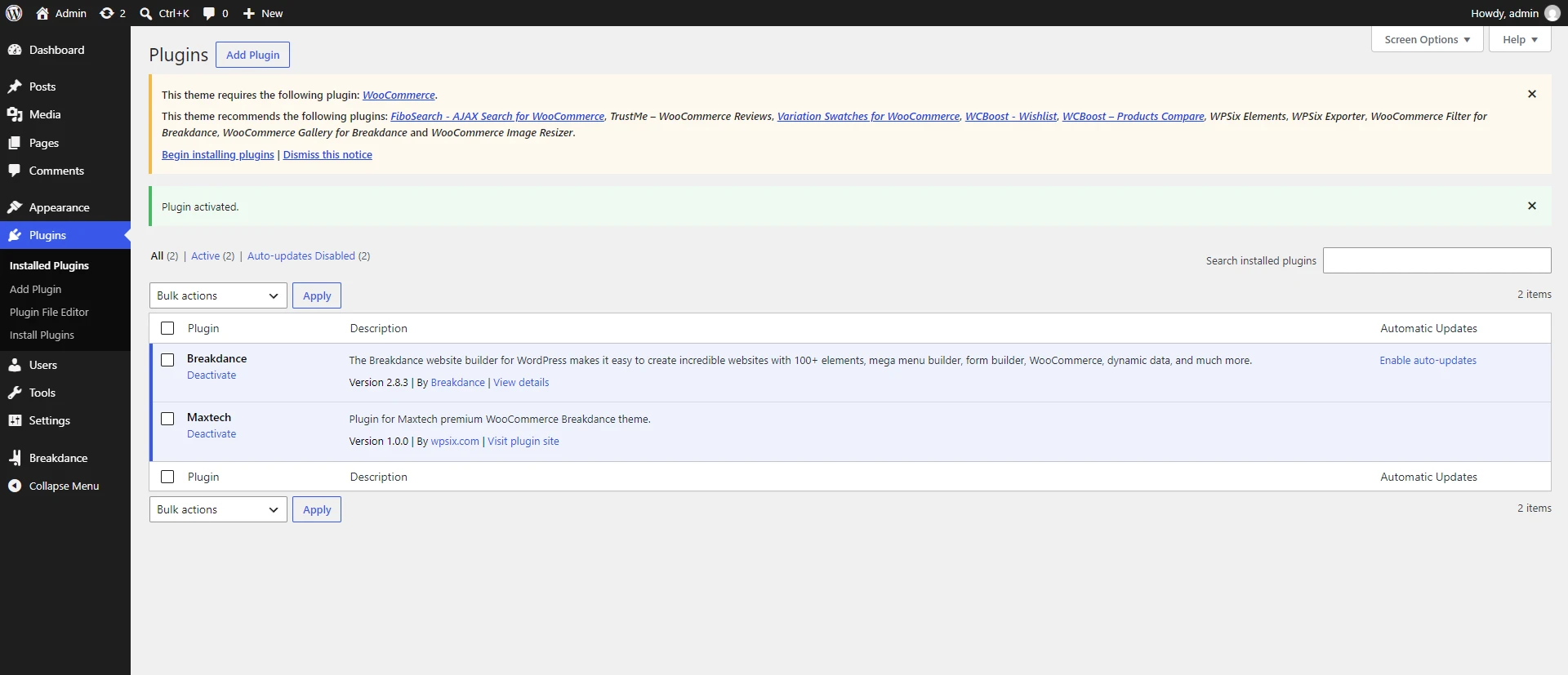
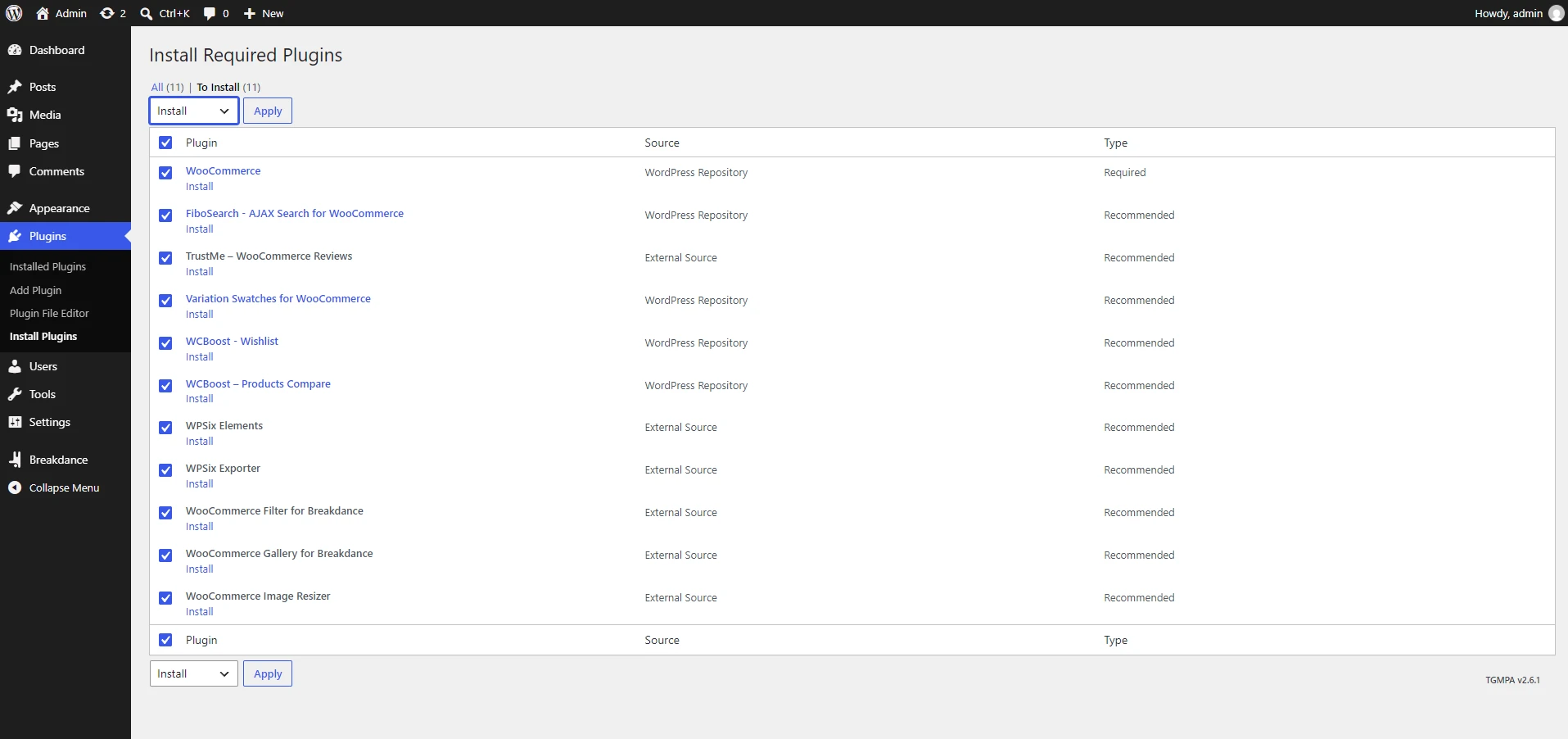
Click Begin installing plugins on the dashboard notice, or go to Appearance > Install Plugins.
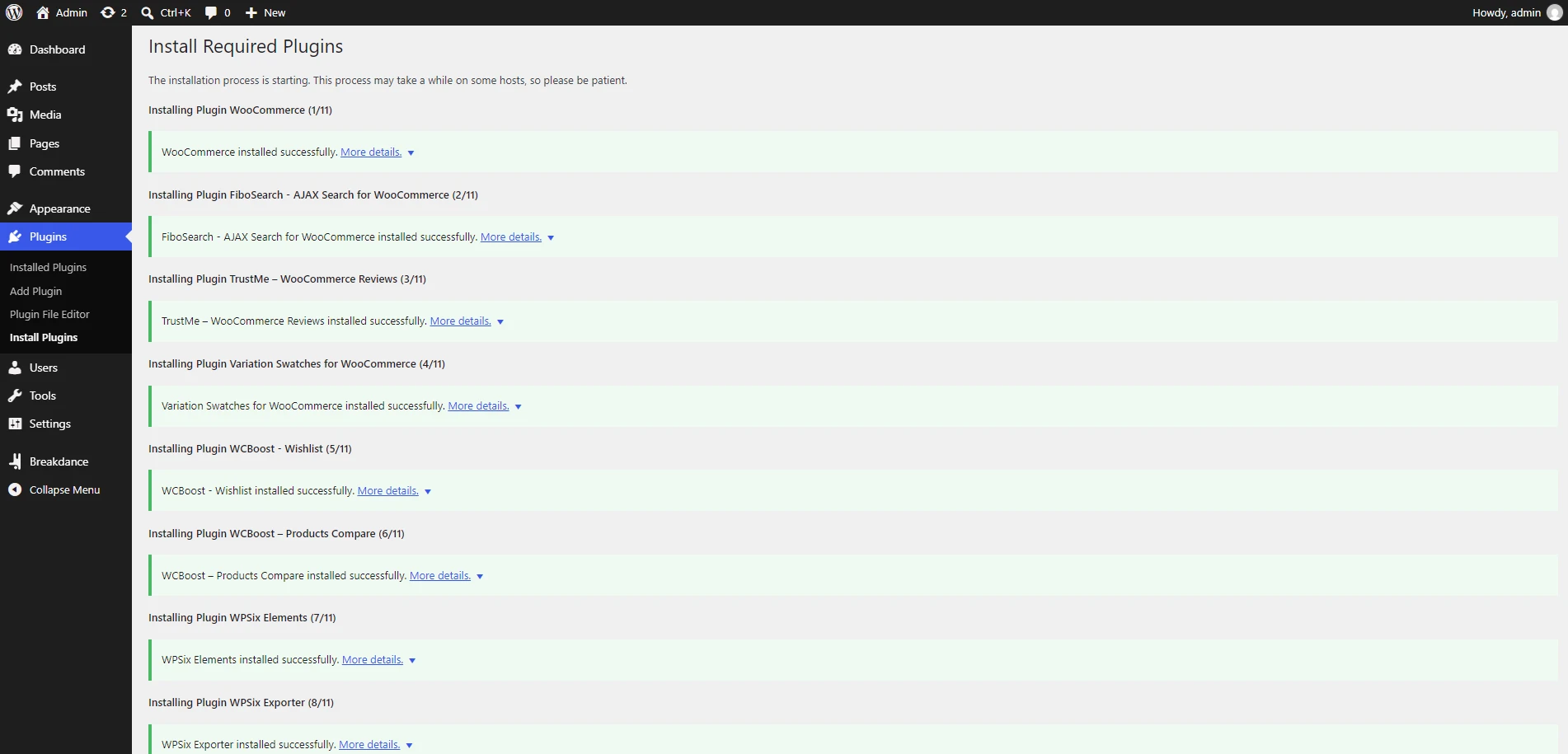
Tick the checkbox in the table header to select every plugin. Open Bulk Actions, choose Install, then click Apply. Wait until TGM finishes installing the whole list.
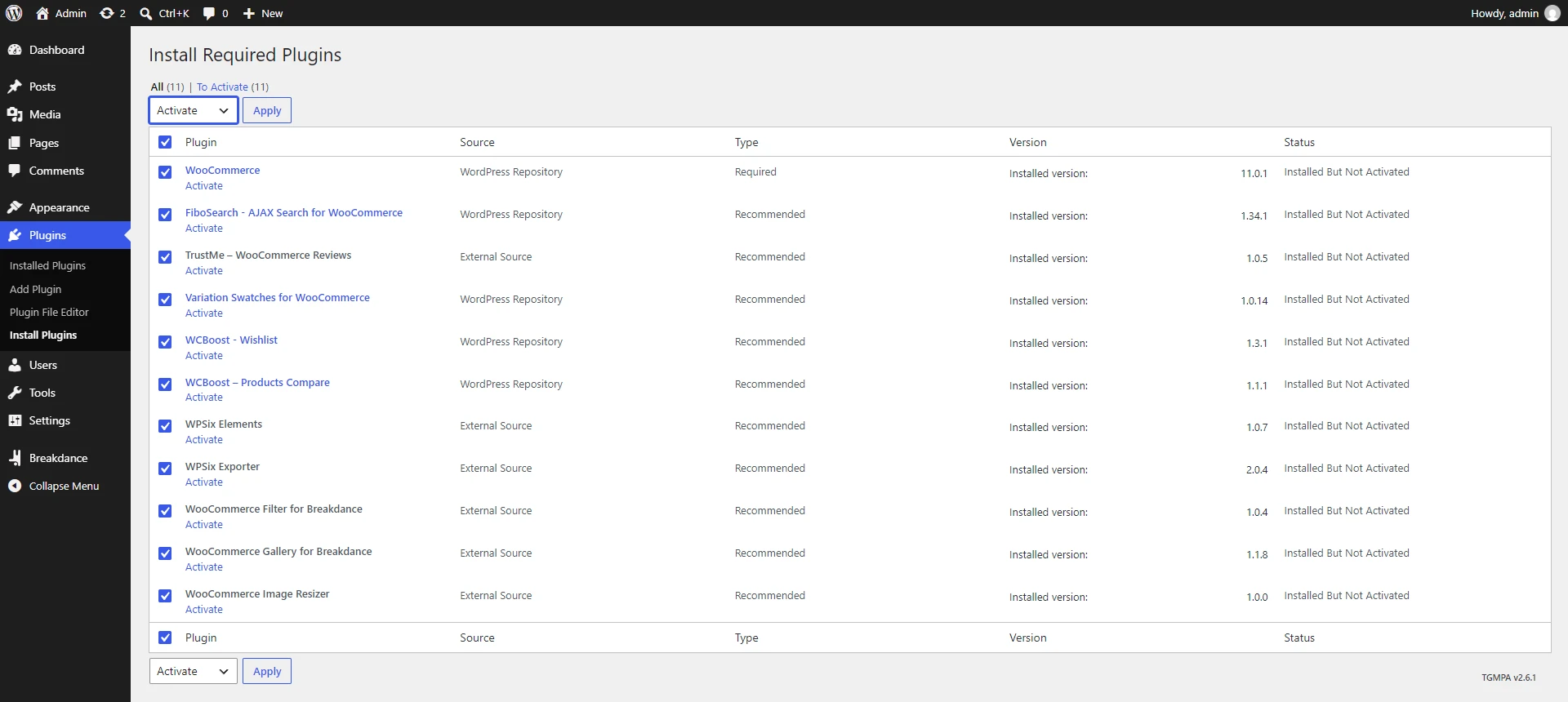
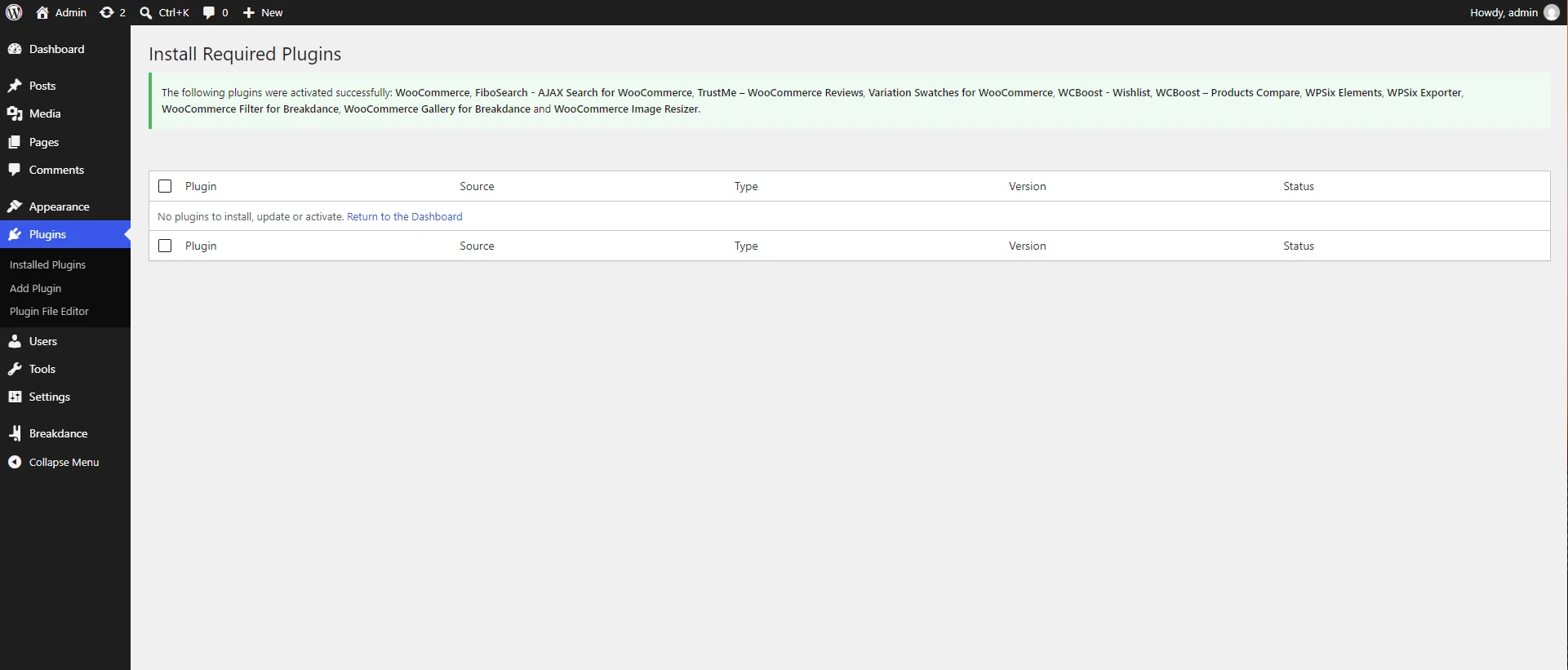
Return to Appearance > Install Plugins, select all plugins again, choose Activate from Bulk Actions, and click Apply. The notice disappears when every required plugin is active.
| Plugin | How it is installed |
|---|---|
| Maxtech | Manually |
| FiboSearch - AJAX Search for WooCommerce | Auto |
| TrustMe - WooCommerce Reviews | Auto |
| Variation Swatches for WooCommerce | Auto |
| WCBoost - Products Compare | Auto |
| WCBoost - Wishlist | Auto |
| WooCommerce Filter for Breakdance | Auto |
| WooCommerce Gallery for Breakdance | Auto |
| WPSix Elements | Auto |
| WPSix Exporter | Auto |
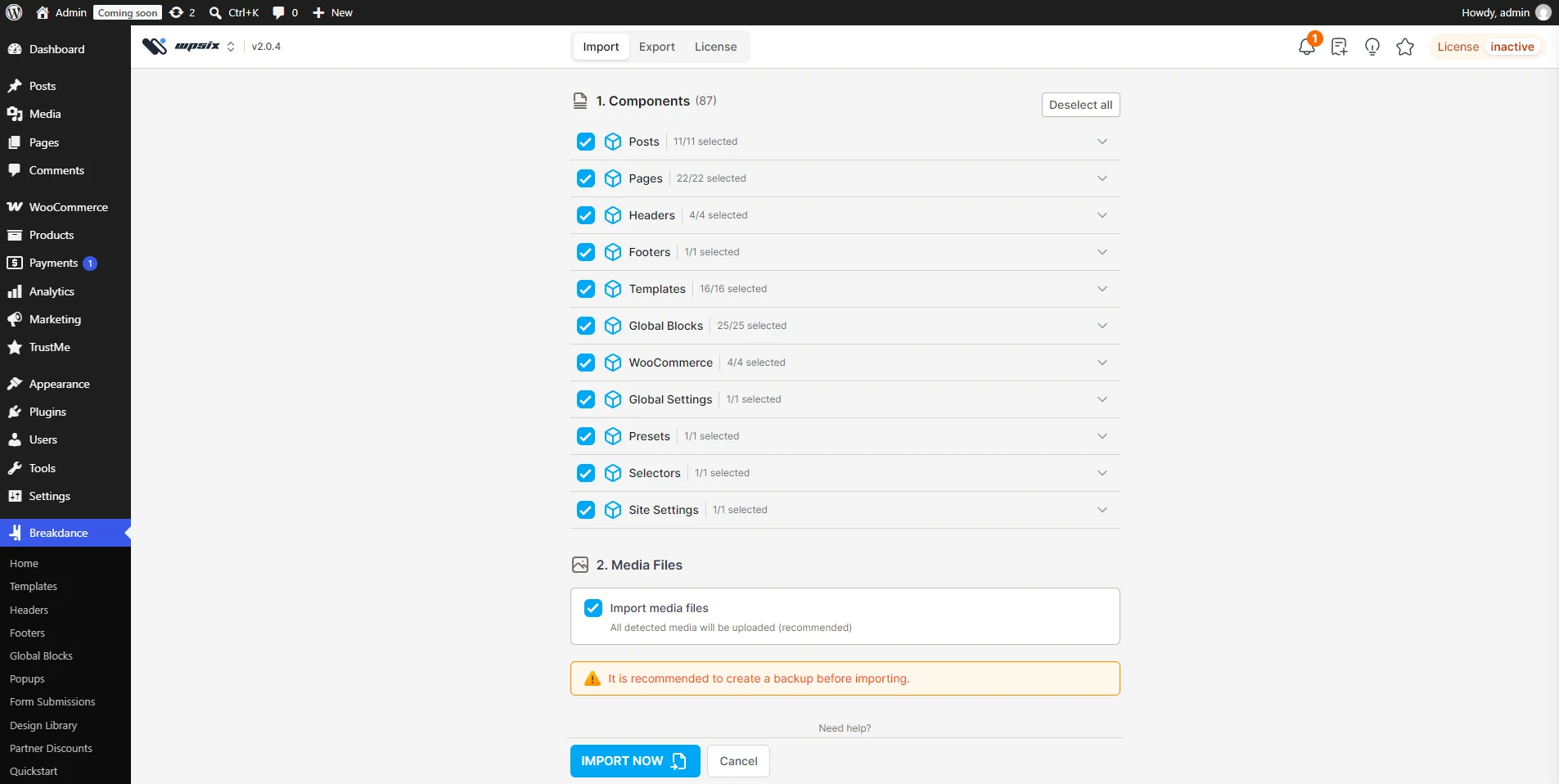
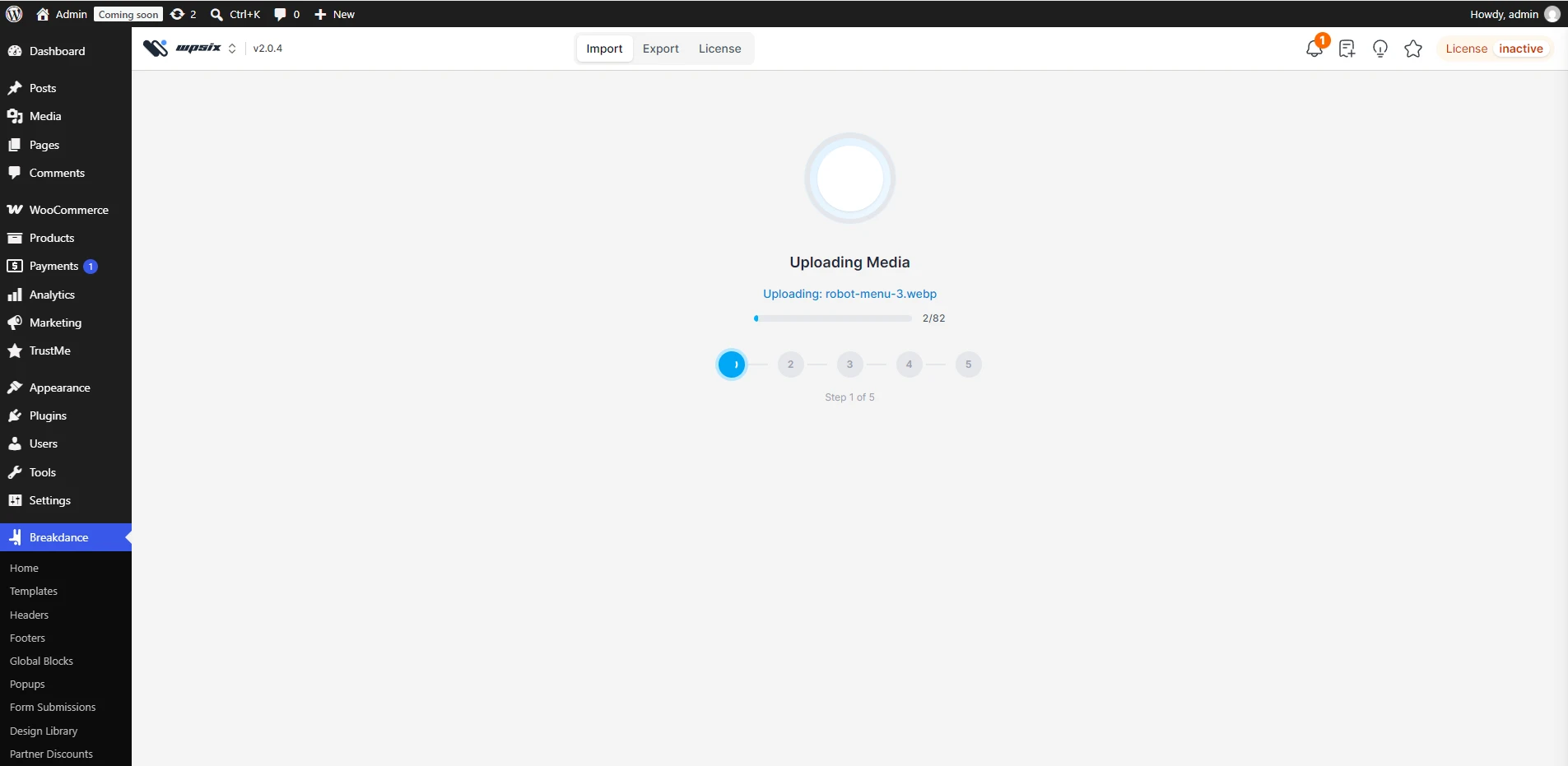
Open WPSix > Exporter, load install.zip, and start importing media files and pages.
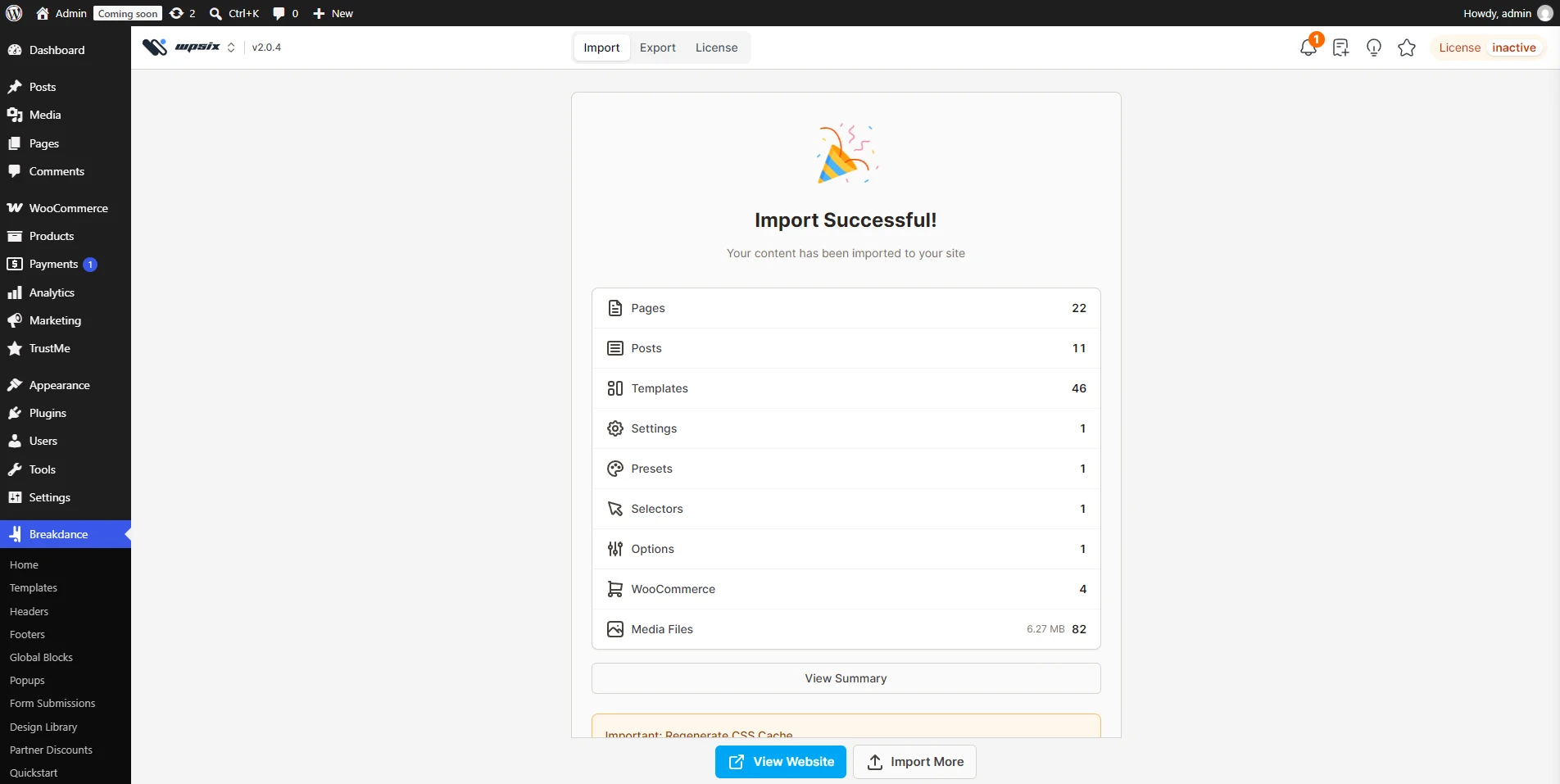
Do not close the tab. When the importer reports success, continue to the CSS cache step below.
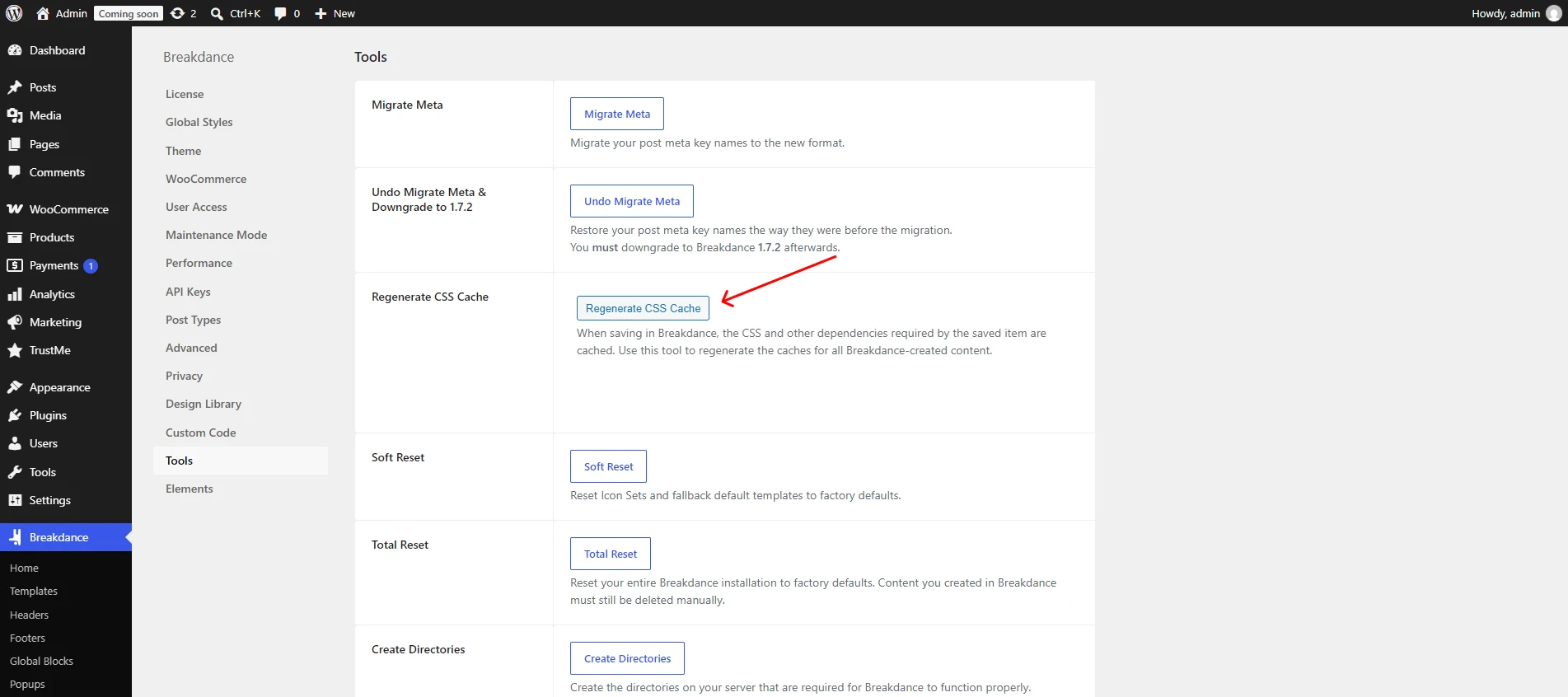
Go to Breakdance > Tools and regenerate the CSS cache so the imported layouts render with the correct styles.
Go to WooCommerce > Products > Import.
Choose sample-products.csv from the Maxtech package and click Continue.
Keep the column mapping as it is, then click Run the importer. When it finishes, open the shop and a few products to confirm they appear.